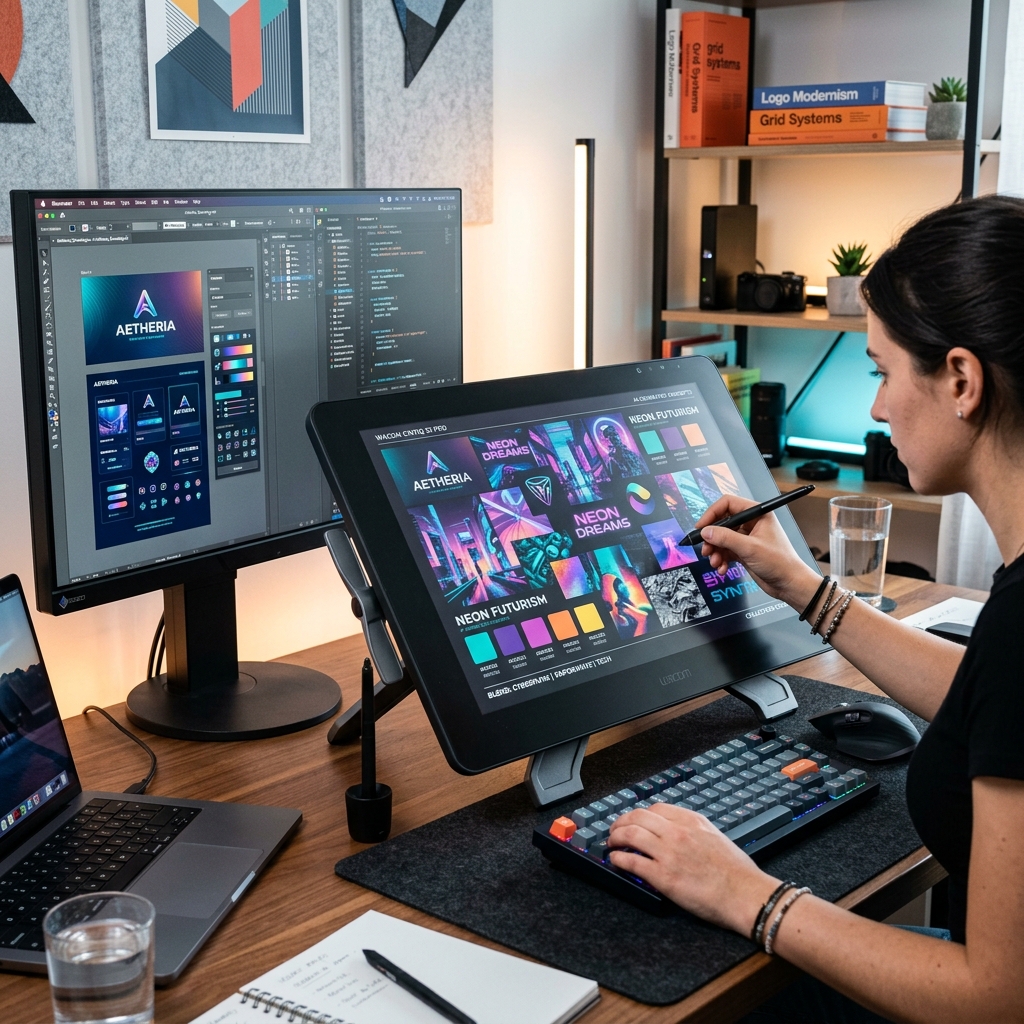
Practical AI Application: Graphic & UI/UX Designers
Don't fear AI taking your job. Use it to eliminate the most tedious tasks. A practical guide to utilizing Midjourney, Magnific, and Canva Magic Studio.
The birth of Generative Image AI initially sent waves of panic across the Graphic Design community. But right now, AI is acting as a "super assistant" rather than an enemy. Skip endlessly scrolling across Pinterest for a Concept or spending hundreds of dollars on Stock Photography. AI can give you base assets within minutes.
1. Actual Pain Points for Graphic Designers
- The Blank Canvas Block: Starting an idea from absolute scratch is tough, especially when a client asks to look at 3-4 completely different visual concepts before choosing.
- Revision Hell: A client approves the draft, then demands "add a bit of modern aesthetic to it" meaning you have to re-render or re-illustrate the whole piece.
- Tedious Micro-tasks: Manually cutting out messy hair from backgrounds, removing random background clutter (trash objects), or extending fixed aspect-ratio canvas dimensions.
- Character Consistency: Making an AI generate 10 frames of a character where the face looks "exactly" identical used to be an overwhelming challenge.
How does AI solve this? AI does NOT output the "Final Print Ready" file. AI gives you raw materials and rapid mockups, facilitating super-fast client pitches before you actually jump into detailed vector illustrations.
2. Must-Have Tools for the Modern Designer
- Midjourney v6: The ultimate wall of aesthetics. Every prompt produces incredibly detailed, beautifully lit, photorealistic, or hyper-stylized images. Must-have.
- Krea AI / Magnific AI: Supremely exceptional at Upscaling logic. Features the capability to turn extremely blurry raster objects into 4K super-sharp files, faking skin pores and fabric grain flawlessly.
- Photoshop Generative Fill / Canva Magic Studio: The sorcerer of photo retouching. Select an area, enter text, and AI blends new details perfectly alongside existing environmental elements.
3. Real-world Workflows & Scenarios
Use-case 1: Moodboards & Concept Art Generation
Goal: Never manually copy-paste from Pinterest. Create 10 cohesive concepts to close a design deal within 2 minutes matching client briefs.
Sample Prompt (For Midjourney):
/imagine prompt: A creative moodboard for an organic coffee brand. Top half shows different minimalist packaging concepts using earth tones and sage green. Bottom half displays typography samples and lifestyle imagery of young adults enjoying coffee in nature. Clean aesthetic, grid layout, high resolution, soft natural lighting. --ar 16:9 --v 6.0
Why it works? Midjourney v6 has gotten incredibly good at compositional grids. You don't need to actually fully design the coffee pouch yet—send the generated mood board to the client and ask, "Does this earthy minimalist tone fit your vision?". Once approved, actually design it.
Use-case 2: Brand Mascot Consistency
Goal: Create an expansive brand campaign photoset showcasing the EXACT SAME girl holding a product in a park, then in a cafe, pointing at the screen without her face morphing.
Workflow via Midjourney Character Reference (--cref):
- Generate an amazing hero character (E.g., A smiling Asian girl wearing casual clothes). Copy her image URL.
- Use
--crefto force the AI to lock her facial data.
/imagine prompt: A young asian woman pointing her finger at the viewer, standing in a brightly lit modern office, wearing a professional navy blue suit. --cref [URL_Link_Here] --cw 100
Pro Tip: Using --cw 100 tells AI to copy BOTH her face and clothes. If you want her wearing completely different clothes but retaining the same face, drop it to --cw 0!
Use-case 3: "Saving Edge Cases" with Generative Expansion
Goal: Client sends over an Instagram 1:1 square photo, and commands you to stitch it into a 16:9 Facebook Cover background.
Workflow (via Photoshop Generative Fill):
- Create a 16:9 canvas and place the square image dead center.
- Select the blank void spaces on the left & right using the
Rectangular Marquee Tool. - Type:
extend blurry background of a living room with indoor plants. Hit Generate. - To remove random garbage objects, lasso the object, click Generative Fill, leave the prompt completely empty, and press Enter. The rubbish vanishes cleanly in 5 seconds.
4. Elite Designer Tips & Tricks
- On Fake Typography: Midjourney v6 currently CAN render letters precisely by dropping words within quote marks
""(Example:a neon sign saying "COFFEE"). However, NEVER rely on AI to build a Logo Typeframe since its Kerning & Tracking spacing control is terrible. Always render background assets in AI, and place standard text manually via Illustrator/Figma. - Lighting Prompting: If images feel "plastic," throw lighting parameter keywords in to salvage the aesthetic: “volumetric lighting, rim light, ambient occlusion, moody cinematic atmosphere”
5. Limitations
[!WARNING] While Midjourney can output gorgeous simulated vectors (e.g.,
flat vector illustration), the saved file output is strictly .PNG/.JPG (Raster image). If you upscale it to print a Massive City Billboard, pixels will break noticeably. The Fix: You must pass the AI-generated picture through applications like Vector Magic or utilize Illustrator's Image Trace function to re-calculate math paths, turning them into infinitely scalable scalable vectors before sending them off to massive print shops.
A modern Graphic Designer isn't merely evaluated on brush strokes, but heavily reliant on Art Direction capability, commanding AI algorithms to shape and execute their elite creative taste.