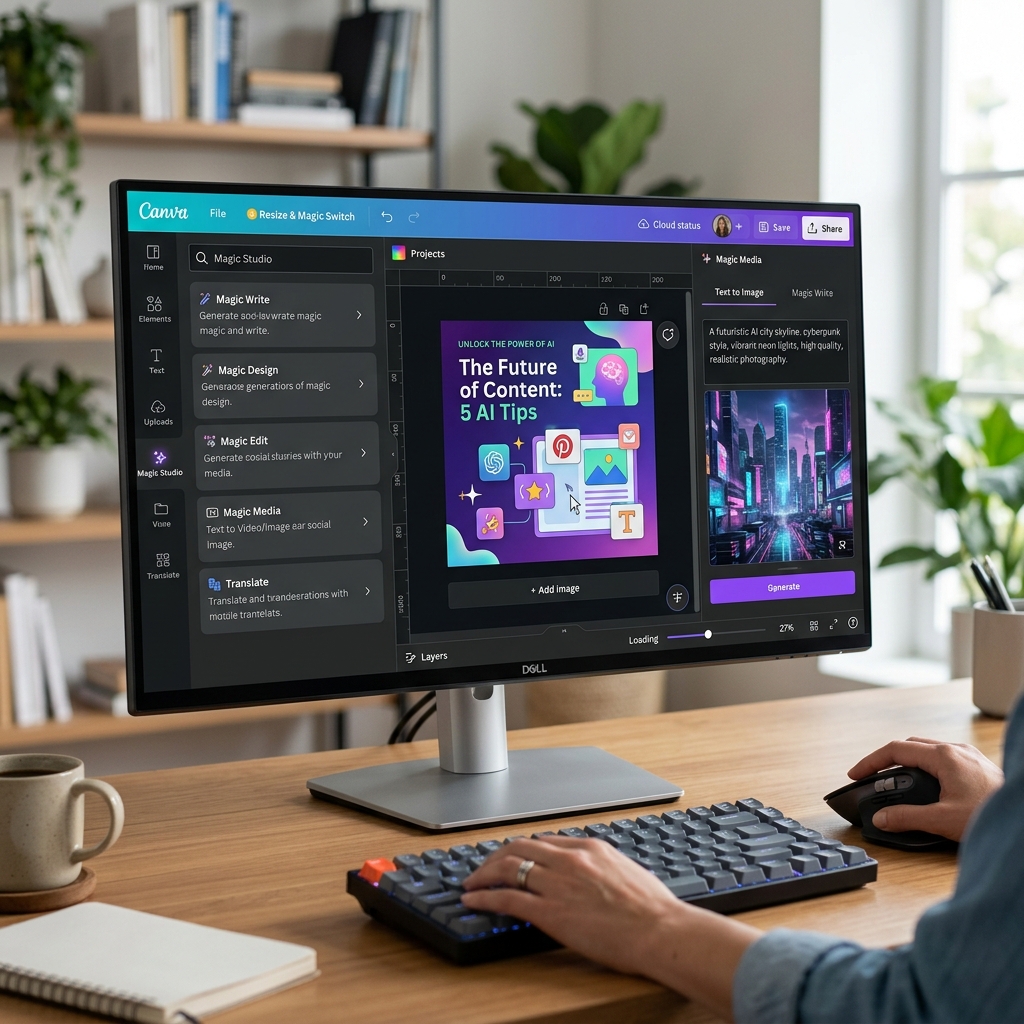
Canva AI (Magic Studio) - Automate Graphic Design with Imagination
1. Introduction to Canva AI (Magic Studio)
Canva, the drag-and-drop graphic design giant for non-professionals, has officially entered the Artificial Intelligence era through its comprehensive Magic Studio toolkit.
Magic Studio isn't just a single standalone tool; it's an entire ecosystem of AI features deeply embedded directly into your design workflow. From removing objects, expanding image borders, and auto-generating copywriting, to creating a fully formatted 10-slide presentation from a single prompt. This is the ultimate All-In-One solution bridging the technical divide for Content Marketers, Educators, and Small Businesses.
Core Strengths (USP):
- Seamless Integration: You don't need external AI tools to generate assets and import them into Canva. Everything happens exactly where you design.
- High Applicability: Rather than chasing abstract art, Canva's generative powers focus on practical outputs: Typography formatting, Layout generation, Background removal, and Copywriting.
- User-Friendly Interface: Exceptionally easy to use, making it accessible to everyone from students to corporate marketers.
2. Core Features and Practical Use Cases
The Magic Studio suite handles almost the entire digital content workflow:
- Magic Media (Text to Image & Video): Integrated with models like DALL-E, Imagen, and Runway ML. It creates copyright-safe illustrations right inside your artboard for Facebook posts or blogs.
- Magic Design (Automated Designing): Stuck on a layout for a Sale campaign? Just type: "Make an Instagram post for a cosmetics 50% Mother's Day sale." Canva spits out 10 fully constructed, branded variations.
- Magic Write (Smart Copywriting): An AI text assistant similar to ChatGPT, but infinitely more convenient because it runs directly inside your presentation text boxes.
- Magic Edit & Grab ("Magical" Photo Editing): Allows you to select a specific object (e.g., a flower) and delete it or change its color, while the AI perfectly fills in the background space. Photo manipulation has never been easier.
- Magic Switch (Format Transformation): Turn a square Instagram post into a widescreen presentation instantly. The AI intelligently resizes and crops the layout to a 16:9 ratio without ruining your typography.
3. How to Access and Setup
Installing and accessing Canva is a standard baseline for most modern desktop and mobile users:
- Visit Canva.com (Or download the App on Windows/MacOS/iOS/Android).
- Sign up for a free account (Quick SSO logins available via Google/Facebook).
- The vast majority of heavy AI-powered tools (in Magic Studio) are marked by a purple crown/three-star icon and require a Canva Pro subscription to unlock fully.
- Open any Create a Design document (e.g., Instagram Post). Access the magic via the "Elements" tab or the overarching "Magic Studio" button on the left vertical navigation bar.
4. Basic Usage Guide: Magic Edit Feature
Among the utilities, Magic Edit provides one of the most magical experiences:
- Step 1: Drag and drop a photograph from your computer into the Canva design frame.
- Step 2: Click on that image, then select
Edit Photoon the top horizontal menu bar. - Step 3: Click the
Magic Edittool on the left-side panel. - Step 4: A "Brush" interface appears. Brush over an object you want to change in the photo (e.g., brush over a cupcake in your hand).
- Step 5: A text box appears. Type in: "Replace with a green apple." Hit Generate. Wait 5 seconds, and a natural-looking green apple with accurate shadows perfectly replaces the cupcake.
5. Best Practices
- Synchronize with your Brand Hub: Set up your Brand Kit inside Canva first: Lock in your brand's Typography and specific Hex Colors for logos. From then on, Magic Design will generate AI layouts adhering strictly to your brand guidelines.
- Use Magic Switch for Quick Localization: Have a poster with 1,000 words in English? Select the
Magic Switchtool -> Translate into Spanish. The entire typography structure holds its layout while the language seamlessly transforms. - Don't Force Heavily Complex Art on Canva's AI: Canva's image algorithms (Magic Media) excel at standard Flat Design, 2D vectors, and basic 3D graphics. Currently, they may not consistently match the hyper-realistic, cinematic quality achievable natively via MidJourney or Stable Diffusion.
6. Pricing and Tiers
Canva's toolkit is highly attractive due to extremely competitive pricing tiers compared to dedicated pro-design AI platforms:
| Plan | Base Cost | AI Features Included |
|---|---|---|
| Canva Free | $0 | Severely limited AI usage (Only 5 lifetime uses of Magic Write and Create Image). Primarily serves as a demo. |
| Canva Pro | ~ $14.99/month | Perfect for Freelance Designers. Provides 500 Magic Media image generation credits per month, plus unlimited access to Magic Eraser, Grab, and Switch features. |
| Canva Teams | ~ $29.99/month (for 5 users) | Full Brandkit administration connected directly to AI generation across your entire Agency/Marketing team, alongside admin approval rights. |
7. Conclusion
Canva AI won't turn you into the artist of the century, but it will save content marketers and average users 3 to 4 hours of tedious Adobe Photoshop tinkering every single day. It brings the concept of functional "Design" firmly back to the democratization stage.
- Pros: The smoothest, most closed-loop workflow ecosystem in the world right now. Exceptionally cheap on the Pro tier, and a learning curve of virtually zero. Incredibly powerful for layout structure edits, background manipulation, and rapid slide generation.
- Cons: The raw image generation output (Magic Media) can sometimes lack fine detail or suffer from inconsistency if the descriptive prompt is too complex.
Experience the feature now: Canva Magic Studio - Official