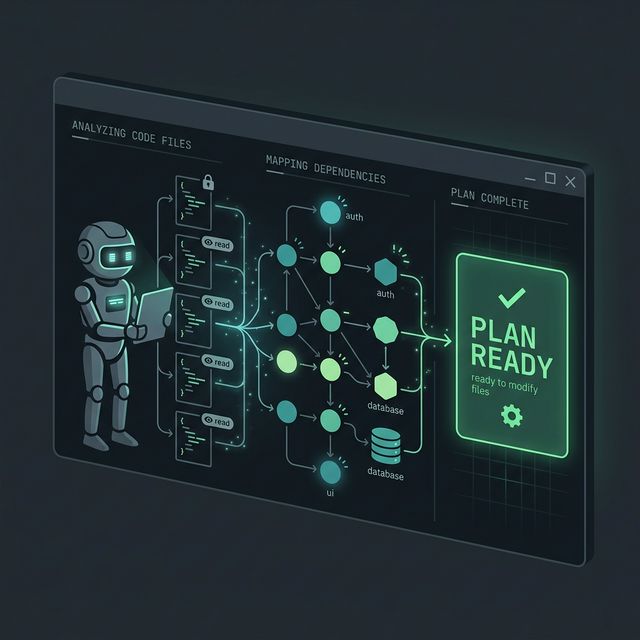
Gemini CLI Plan Mode: The Safest AI Coding Workflow in 2026
Plan mode in Gemini CLI lets the AI agent read and plan without touching any files — a major step toward production-safe AI coding for real development teams.
TL;DR
Gemini CLI Plan mode (launched March 11, 2026) is a read-only mode where the AI agent researches your codebase, creates a plan, and asks clarifying questions — without modifying any files. This is the planning-first AI workflow pattern that engineering teams are adopting to use AI coding agents safely in real projects.
One of the biggest concerns when using AI coding agents in real projects is: "It might change something I didn't want changed."
That's not an irrational fear. Earlier AI agents typically operated edit-first — you prompt, the agent immediately edits files, and you only see the result after changes have happened. That's fine for small projects, but in larger codebases with complex dependencies, this approach can generate unwanted changes in unexpected places.
Plan mode in Gemini CLI addresses this with a different approach: inspect first, edit later.
What Is Plan Mode?
According to the Google Developers Blog (launched March 11, 2026):
Plan mode is a read-only mode that restricts Gemini CLI to a subset of its tools. When active, the agent can navigate your codebase, search for patterns, and read documentation — but cannot modify any files except for its own internal plans.
You can ask Gemini CLI to "research how to migrate this database" or "plan a new feature," and it will map out dependencies and propose a solution — with zero risk of premature code changes.
Core Capabilities
Safe exploration: The agent uses read-only tools like read_file, grep_search, and glob to validate assumptions without touching code.
Architectural mapping: Uses specialized sub-agents like codebase_investigator or Agent Skills to understand complex system dependencies.
Iterative design: Refine your strategy through conversation before switching to edit-capable mode.
Fully extensible: Extend plan mode with custom policies, or build workflows on top of it using the enter_plan_mode and exit_plan_mode tools.
The ask_user Tool: A Workflow Game Changer
A plan is only as good as its requirements. Google introduced the ask_user tool simultaneously — allowing the agent to pause and ask targeted questions to clarify goals or gather missing information.
Instead of guessing your intent, Gemini CLI can:
- Present options for you to choose from
- Ask about specific architectural choices
- Request the location of a hidden configuration file
This bidirectional communication ensures the final plan aligns perfectly with your vision before you commit to implementation.
Real example — database migration planning:
"I need to migrate the schema from PostgreSQL to Supabase. In the current
config/database.yml, should I preserve the connection pooling settings? And does this migration need to run on staging first?"
This type of question — which earlier agents would decide on their own — is now explicitly asked before any file is touched.
Read-only MCP Tools: Planning Beyond Local
Plan mode isn't limited to your local filesystem. It supports read-only MCP tools, allowing Gemini CLI to pull context from your entire developer stack:
| Source | Example use |
|---|---|
| GitHub Issues | Read bug reports to understand requirements |
| PostgreSQL schema | Inspect table structure before migration |
| Google Docs | Read technical specs or design documents |
This ensures your plan is informed by all relevant external data while maintaining the integrity of your codebase.
Conductor: Planning-first for Complex Projects
For more complex projects, the Conductor extension for Gemini CLI takes full advantage of both plan mode and the ask_user tool.
Conductor enables Context-Driven Development — acting as an orchestrator for multi-step development tracks, guiding you through complex migrations or feature implementations:
- Performs exhaustive pre-flight checks and research steps with zero risk
- Uses
ask_userto confirm critical decisions at each milestone - You stay in control of high-level direction; the agent handles context gathering and sub-task drafting
Google is working to bring Conductor into Gemini CLI as a built-in mode in the near future.
A 6-Step Planning-first Workflow for Teams
Here's a practical planning-first workflow teams can adopt immediately:
Step 1 — Start in Plan Mode
Activate by typing /plan, pressing Shift+Tab to cycle through approval modes, or asking the agent to "start a plan for..."
Step 2 — Let the Agent Inspect
The agent reads the repo, maps dependencies, and checks assumptions — nothing is changed at this stage.
Step 3 — Answer Clarification Questions
The ask_user tool will pause and ask what the agent needs to know. This is the most important step for ensuring plan accuracy.
Step 4 — Review the Proposed Strategy
Read the plan carefully before switching to edit mode. Think of this as "code review before there's code."
Step 5 — Approve the Switch to Edit Mode
Only move to edit-capable mode after the plan looks right to you.
Step 6 — Execute in Validated Chunks
Implement in small, verifiable pieces — not all at once.
Getting Started Today
Plan mode is enabled by default for all users:
# Activate plan mode
/plan

# Or use Shift+Tab to cycle through approval modes

# Set plan mode as default in settings
/settings  # → "Default Approval Mode" → Plan
To disable: go to /settings, search "Plan," and toggle it off. This will:
- Remove plan mode from the
Shift+Tabrotation - Unregister
enter_plan_modeandexit_plan_modetools
Gemini CLI uses higher-reasoning Pro models (like the new Gemini 3.1 Pro) during planning to ensure quality architectural decisions.
Plan Mode vs. Older AI Coding Habits
| Pattern | Edit-first (old) | Planning-first (new) |
|---|---|---|
| Flow | Prompt → Agent edits → You review | Inspect → Clarify → Plan → Approve → Execute |
| Risk | Unwanted changes | Very low |
| Team trust | Low (lots of verification) | Higher |
| Best for | Small projects, solo | Production codebases, teams |
Risks to Keep in Mind
Planning-first doesn't mean perfect:
- Plans can still be wrong if source context is incomplete
- Read-only ≠ perfect reasoning — the agent can still misunderstand the codebase
- Teams still need review gates after plan approval
- May cause friction for developers used to instant execution
Who Should Try It First?
- Solo developers working on messy repos
- Small teams with limited code review bandwidth
- Engineering leads testing AI policies before broad rollout
- Consultants onboarding into unfamiliar codebases
The Bigger Picture
Plan mode is more than a convenience feature. It reflects a larger shift: AI development workflows are moving from autonomous execution toward governed, staged automation.
Just as code review became standard in software engineering, planning-first AI workflows are becoming the standard for teams that want to use AI coding agents in production — not just in sandboxes.
FAQ
Is Plan mode free? Yes, Plan mode is enabled by default for all Gemini CLI users at no additional cost.
How do I disable Plan mode?
Type /settings, search for "Plan," and toggle it off.
Does Plan mode work with MCP servers? Yes, Plan mode supports read-only MCP tools, allowing reads from GitHub, Postgres, Google Docs, and many other sources during planning.
Is the Conductor extension free? Conductor is an open-source extension at github.com/gemini-cli-extensions/conductor. Google is working to integrate it as a built-in Gemini CLI mode.
How does Gemini CLI Plan mode compare to Claude Code?
Both are powerful, but Gemini CLI's Plan mode differentiates with explicit read-only enforcement and the built-in ask_user tool for structured clarification. See our March 2026 AI dev tools comparison for the full picture.